
Photo Collage - Pic Grid Maker
Magic Photo Collage & Photo Editor - CollageArtPhotography
3.92.19K Reviews
- Version
- 2.9.50
- Installs
- 10.00M
- Age Rating
- Everyone
Screenshots

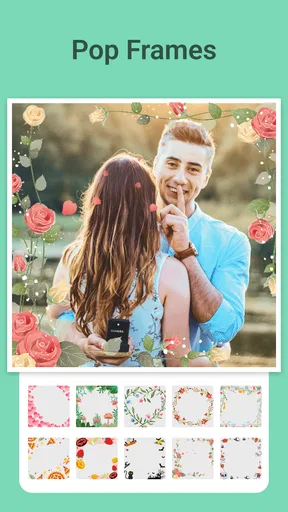
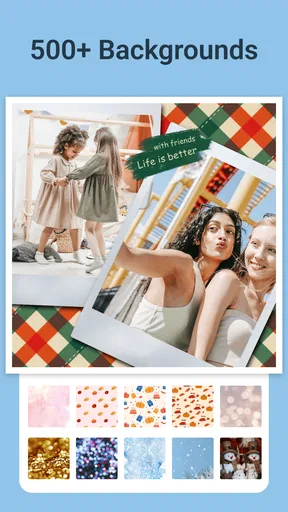
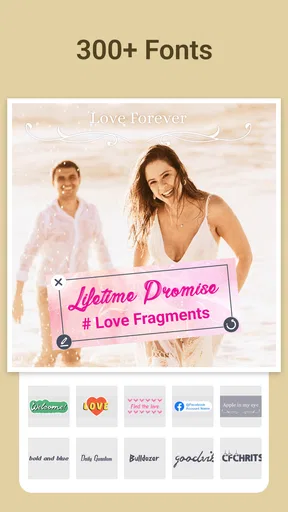
Our Review of Photo Collage - Pic Grid Maker
 Analysis by Appyee
I approached Photo Collage - Pic Grid Maker as the sort of photography app people open when several pictures need to become one shareable image quickly. It is free to install, aimed at Everyone, and made by Magic Photo Collage & Photo Editor - CollageArt. Its basic appeal is easy to understand: choose pictures, arrange them in a grid or design, add finishing touches, and save the result without opening a full desktop editor.
That simplicity is useful, but it can also be misleading. A collage app is only enjoyable when the selection process, layout controls, editing tools, and saving step behave predictably. In my experience, most frustration with this kind of app does not come from making the collage itself. It comes from choosing the wrong images, losing the intended order, struggling with a crowded template, or assuming a problem is caused by the editor when the real issue is the phone, the image files, or the sharing destination.
After spending time with the app, I see it as a practical option for casual photo projects rather than a replacement for a full photo editor. It has enough creative choice to make a birthday grid, a travel recap, a product comparison, or a simple social post feel personal. At the same time, users who want precise layers, advanced retouching, or a completely uncluttered free experience may find its limits sooner.
What the app is good at, and where people get stuck
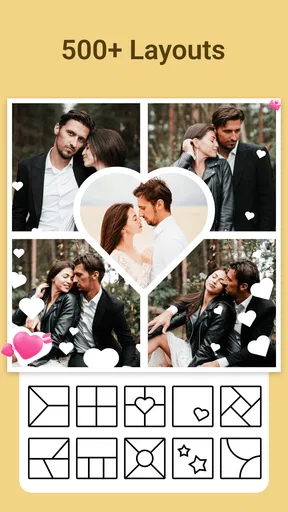
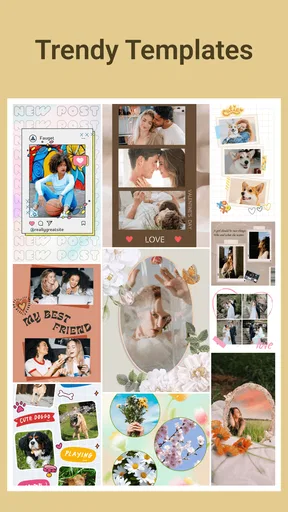
The strongest part of this photo collage maker is the range of starting points. The app includes over a thousand layout, template, and text possibilities, so it is not restricted to one rigid grid style. That breadth matters when the photos have different shapes. A simple rectangular arrangement can work for a group of similarly framed pictures, while a more decorative template may suit a birthday message or a small visual story.
The trade-off is choice overload. When there are many layouts available, it is easy to spend more time browsing than editing. I recommend deciding the purpose of the collage before opening the template collection. If the result is meant to show a sequence, begin with a clean arrangement that gives each picture similar visual weight. If it is meant to be a greeting or announcement, look for a design that leaves enough breathing room for text instead of choosing the most elaborate preview.
Another common sticking point is photo order. A collage can look wrong even when every image is present if the first selected picture lands in an unexpected position. Rather than trying to repair the whole design afterward, I find it more efficient to prepare a short selection first. Put the images in the order you want to see them, remove near-duplicates, and keep the number manageable for the chosen layout. This small step reduces repeated rearranging and makes the final composition easier to judge.
Users can also get caught by mismatched image proportions. A portrait photo placed in a wide cell may be cropped more aggressively than expected, while a landscape shot can leave an important subject near an edge. Before committing to a template, I check where faces, signs, pets, or products sit in each picture. A layout that looks attractive in the preview may not be the best fit for the actual images.
The text tools create a similar decision point. Text is helpful for dates, names, short greetings, or labels, but a collage becomes difficult to read when every space carries a message. I get better results by treating words as a supporting element rather than filling every empty area. A short phrase with clear contrast usually communicates more effectively than several decorative lines competing with the photos.
Setup checks that prevent unnecessary frustration
The app runs on devices using Android 7.1 or later, so compatibility is worth checking before troubleshooting anything else. If the app opens but behaves strangely, I first confirm that the phone is not close to its storage limit and that the operating system is reasonably up to date for the device. These are general checks, but they are especially relevant when working with several large photographs at once.
I also start with a small test project. Instead of importing a full album, I select a few ordinary images and create a basic grid. This quickly tells me whether the main workflow is functioning: image selection, placement, editing, and saving. If the small test works, the issue is more likely related to the original batch, a particular file, or the complexity of the selected design than to the whole application.
When pictures do not appear in the picker, I check whether they are actually stored on the device and visible in the phone’s regular gallery. Cloud-only items, recently moved files, or images saved in an unusual location can create the impression that the collage app has lost access to them. Moving a copy into a familiar local folder and trying again is a sensible general recovery step.
It is also helpful to avoid beginning with edited copies that have unusual formats or very large file sizes. I am not suggesting that every such image will fail, but a standard camera image is a better diagnostic sample than a file exported through several other apps. Once the basic workflow works, I add the more troublesome pictures one at a time. That makes it easier to identify which file is causing the interruption.
The current version is 2.9.50, and I would use the latest version available for the device rather than relying on an old installation. Updating can resolve ordinary stability problems, but I would not treat an update as a guarantee that every issue disappears. If a project is important, I save intermediate results where possible and avoid clearing app data casually, because reset actions can remove local work.
Because the app is free, it is easy to try without paying first. There are in-app purchases ranging from $0.99 to $34.99 per item, so I pay attention to any purchase prompt before confirming it. The free starting point is useful for testing the workflow and deciding whether the available tools fit my needs. I would not purchase anything until I had made a complete sample and knew exactly which extra option I wanted.
A reliable workflow for recovering a half-finished collage
When a project becomes confusing, I do not immediately rebuild everything. I return to the simplest stable point: the original image selection. I note which pictures belong in the final result, then recreate the layout with fewer elements. Once the arrangement looks correct, I add text and decorative adjustments gradually. This separates composition problems from styling problems.
That order is more important than it sounds. If I add text, borders, and other visual changes before confirming the crop of each photograph, I can spend several minutes polishing a design that later needs to be rebuilt. The efficient sequence is images first, layout second, decoration last. It also makes it easier to compare two templates without losing the work already done on the pictures.
If the app appears to freeze while loading a project, I give the phone a moment and avoid tapping repeatedly. Repeated commands can make it unclear whether the editor is processing or receiving several requests. If the screen remains unresponsive, I close and reopen the app, then test with a smaller project. A basic test distinguishes a temporary session problem from a repeatable issue tied to one particular collage.
For a failed save, I try a simpler design and a smaller image set before changing several things at once. If the simpler result saves successfully, I add the original elements back in stages. This is a practical way to find whether the problem is connected to one image, a more demanding template, or the phone’s available resources. I also check the gallery rather than assuming the save failed; sometimes the result is present but not where I expected it.
Sharing deserves its own check. A collage may save correctly but fail when passed to another app because the receiving service has its own limits or because the image is still being processed. I first confirm that the finished picture exists in the device gallery. Then I try sharing it to one destination at a time. If one service rejects it while the file opens normally elsewhere, the editor is unlikely to be the main cause.
One useful habit is to keep an untouched copy of the original photographs. Cropping inside a collage is part of the design, not a replacement for the source image. If I later decide that a face was too close to an edge or that a different picture would work better, having the originals available saves me from trying to recover detail from a finished collage.
When the editor is not the cause
Not every missing image, failed share, or blurry result points to a fault in Photo Collage - Pic Grid Maker. The phone’s gallery may be sorting pictures differently from the app’s picker. A messaging service may compress the finished image after export. A social platform may crop it again to match its own display format. These differences can make a good collage look wrong after it leaves the editor.
I judge the exported file before judging the app. I open it in the regular gallery and zoom in on the areas that matter: faces, small text, product details, and the edges of each cell. If it looks correct there but becomes soft or cropped after sharing, I look at the destination service. For important posts, I prefer to keep the saved original and share that file rather than repeatedly downloading and re-uploading a compressed copy.
Storage and device workload can matter too. A collage assembled from many high-resolution photographs asks more of a phone than a small grid made from a few images. If the device is nearly full or several demanding apps are open, closing unused apps and freeing space is a reasonable first step. I would not infer from one slow project that the app is unsuitable for every phone.
There is also a creative problem that looks technical: the wrong template. If faces are cut off, text overlaps the subject, or one picture dominates the composition, changing the layout is usually more effective than repeatedly adjusting the same design. The app offers enough variety that I can often solve the issue by choosing a structure that matches the images instead of forcing the images into a fashionable but unsuitable frame.
Everyday uses and the people who will appreciate it
A realistic use case is a family member preparing a quick birthday message from a phone. They may have a mix of portraits, old snapshots, and one group photo. I would select the clearest images, choose a layout with a dedicated text area, add a short greeting, and inspect every face before saving. The result does not need professional retouching; it needs readable text, sensible crops, and a layout that feels intentional.
The app also suits travel recaps. Instead of sending a long stream of separate images, I can make several small collages organized by place or day. Here, restraint is valuable. A clean grid with consistent subject sizes tells the story better than a highly decorated template. If the pictures already contain strong colors, I keep text and extra visual elements modest so the locations remain the focus.
Small sellers and hobbyists may find it useful for comparing product variations or showing a few handmade items in one image. The important trade-off is accuracy: decorative templates can make a product look attractive, but tight crops may hide its size, texture, or condition. For that reason, I use a straightforward layout when the collage is meant to inform someone rather than simply catch attention.
It is less suitable for someone who needs detailed image correction. This is primarily a collage-focused photography app, not a replacement for a dedicated editor with precise masking, extensive color controls, or complex layer management. I would also skip it if I want a completely minimal interface with no temptation to browse a large collection of design choices.
Compared with making a collage manually in a general design app, this tool feels quicker for the specific task of combining photographs. Compared with a full photo editor, it is easier to approach but less exact. Compared with a phone’s built-in gallery collage feature, its larger selection of layouts, templates, and text options can provide more room for personalization, though that extra choice may require more browsing and judgement.
What the rating and free model suggest in practice
The app holds a 3.9 average from around 46 thousand ratings, with about 2.2 thousand written reviews. I read that as a sign of a useful but not universally smooth experience: many people can get a collage made, while others may encounter workflow friction, advertising or purchase decisions, device-specific behavior, or expectations beyond the app’s scope. I would treat the rating as a prompt to test it with a small project rather than as a final verdict.
It has passed over 10 million installs, which makes it a familiar choice in the photography category. Popularity does not remove the need to check whether its editing style suits me, but it does make the app worth considering when I want a dedicated collage workflow instead of assembling the result from unrelated tools.
The free installation lowers the risk of trying it for a one-off project. Still, the range of optional purchases means I keep the payment boundary in mind, especially when experimenting with templates or text styles. My approach is simple: make a complete collage using what is immediately available, decide whether the result is good enough, and only then consider whether an optional purchase solves a specific problem.
My practical verdict after using the workflow
I recommend Photo Collage - Pic Grid Maker to people who want a focused way to turn several phone photos into one finished image. Its large collection of layouts and text possibilities gives casual users more control than a very basic built-in collage tool, while the free entry point makes it easy to evaluate. The best results come from choosing images carefully and resisting the urge to decorate before the crops are right.
I would be more cautious about recommending it to advanced editors, users who need exact design control, or anyone who dislikes browsing through many options. It can also be the wrong choice when a failed save or missing image is actually caused by storage, file location, gallery behavior, or the sharing service. Testing with a small local set of pictures is the fastest way to separate those issues.
For me, the app’s real strength is convenience with enough variety to avoid repetitive-looking collages. Its real weakness is that convenience does not always mean clarity: a crowded choice of designs and an imperfect image fit can slow down what should be a quick task. If I remember to check compatibility, start small, build from the photos outward, and verify the saved file before sharing, the experience becomes much more dependable.
Overall, this is a sensible free photography app for family memories, travel summaries, simple announcements, and visual comparisons. It is not the tool I would choose for serious retouching or precision layout work, but it earns a place on my shortlist when the goal is specific: combine photos, add a little context, and produce something ready to keep or share without a complicated editing session.
Verdict
Strengths of Photo Collage - Pic Grid Maker
- Combines photos quickly with simple drag-and-drop editing.
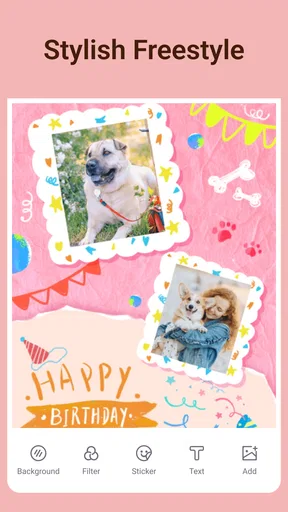
- Offers grids, freestyle layouts, and multiple collage templates.
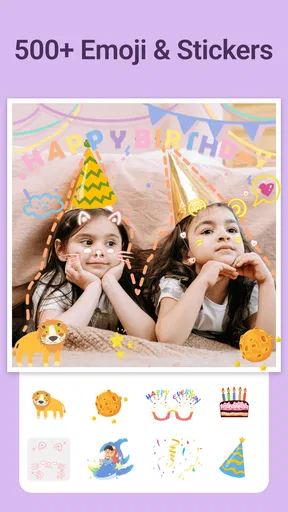
- Includes filters, stickers, text, frames, and background options.
- Supports high-resolution exports suitable for sharing and printing.
- Makes it easy to create social-media-ready images in different ratios.
Limitations of Photo Collage - Pic Grid Maker
- Some templates and editing tools may require in-app purchases.
- Ads can interrupt the editing experience, especially in the free version.
- Advanced photo adjustments are limited compared with dedicated editors.
- Large collages may take longer to process on older devices.
- Export options and quality can vary depending on the selected layout.
Other Releases by Magic Photo Collage & Photo Editor - CollageArt
View All
AI Photo Editor - PhotoArt
Photography4.0
Similar Picks in This Category
View All
Google Photos
Google LLC4.4

Gallery
Google LLC4.2

Picsart AI Photo Editor, Video
PicsArt, Inc.3.9

B612 AI Photo&Video Editor
SNOW Corporation4.1

BeautyPlus-Selfie Photo Editor
PIXOCIAL TECHNOLOGY (SINGAPORE) PTE. LTD.4.5

Remini - AI Photo Enhancer
Bending Spoons4.1
Frequently Asked Questions
What is Photo Collage - Pic Grid Maker used for?
Photo Collage - Pic Grid Maker is designed for combining several images into one polished collage. After testing its main editing tools, we found that it is useful for creating social media posts, travel memories, family albums, birthday greetings, and simple promotional graphics. You can select photos, arrange them in grid layouts, adjust spacing and proportions, and finish the design with additional visual touches before saving or sharing it.
Does Photo Collage - Pic Grid Maker include templates and customization tools?
Yes, the app offers a selection of collage layouts and customization options intended for both quick edits and more creative projects. You can usually change the number of images, modify borders or spacing, reposition pictures inside their frames, and adjust the overall composition. Depending on the version installed, extra backgrounds, stickers, filters, or decorative elements may be available through the app’s editing interface.
Is Photo Collage - Pic Grid Maker free to download and use?
Photo Collage - Pic Grid Maker can generally be downloaded without an upfront payment, but users should check the current store listing for the exact pricing model. Some features, design elements, or editing options may be supported by advertising, in-app purchases, or a premium upgrade. Before confirming any purchase, review the subscription terms carefully, especially if a free trial is offered.
Can I save and share collages created with the app?
Yes, the app is intended to let you export completed collages to your device and share them through common platforms. In our review, the workflow is straightforward: choose a layout, edit the selected photos, preview the result, and use the save or share option. Export quality and available file formats can depend on the app version, device settings, and whether certain options require premium access.
Is Photo Collage - Pic Grid Maker easy to use for beginners?
The app is generally approachable for beginners because its main tools follow a simple visual workflow. Most users can create a basic collage by selecting photos and choosing a grid without needing previous editing experience. However, first-time users may need a little practice when adjusting image crops, spacing, overlays, or decorative effects. A newer phone and sufficient storage can also improve responsiveness when working with many photos.
